TikTok & Reels safe-zone checker
Drop a frame from your video and instantly see which parts TikTok and Instagram Reels cover with buttons, captions, and the feed UI — using the verified 2026 safe-zone measurements, not guesses.
How it works
- Drop a frame from your video — a screenshot of your edit timeline works perfectly, and it never leaves your device.
- Pick your platform: TikTok, Instagram Reels, or the universal zone that's safe on both.
- See what the UI covers, fix your layout, and download the checked frame or a blank overlay for your editor.
What are the TikTok safe zone dimensions in 2026?
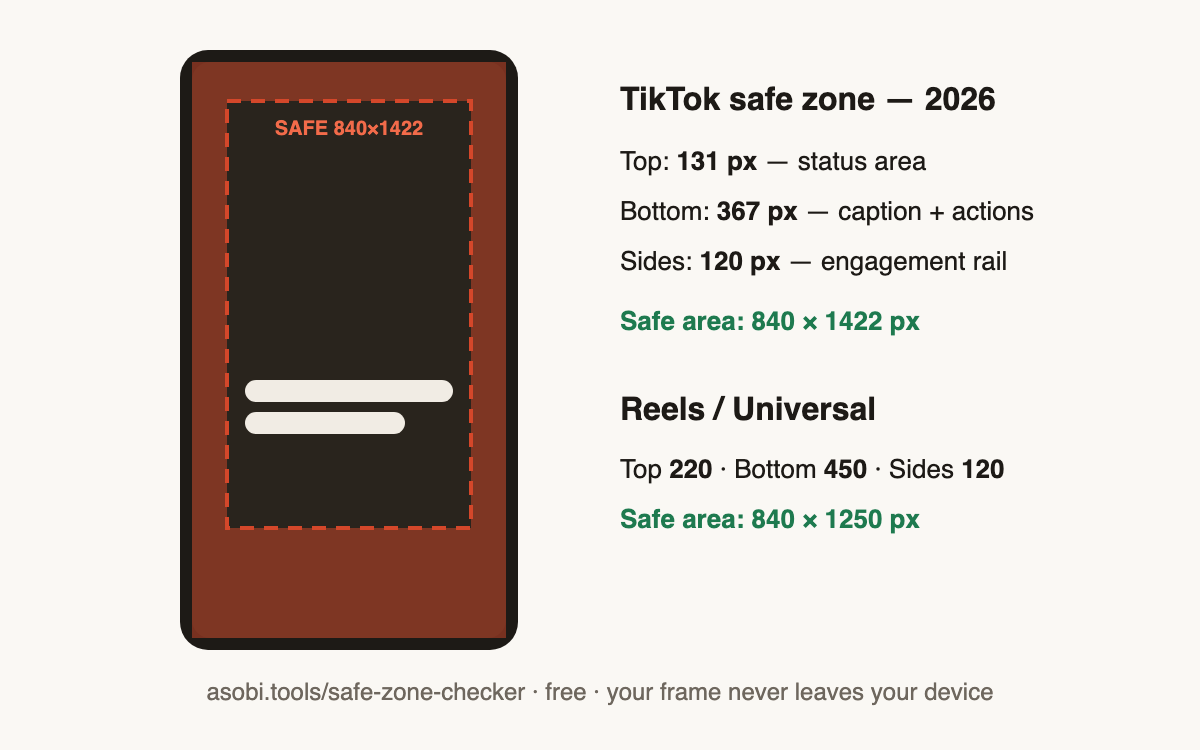
For a standard 1080 × 1920 vertical video, TikTok's interface covers the top 131 pixels (status area), the bottom 367 pixels (caption, sounds, and action bar), and 120 pixels on each side (like, comment, and share buttons). That leaves a safe area of 840 × 1422 pixels where text and key visuals are never covered.
| Platform | Top | Bottom | Sides | Safe area |
|---|---|---|---|---|
| TikTok | 131 px | 367 px | 120 px | 840 × 1422 px |
| Instagram Reels | 220 px | 450 px | 120 px | 840 × 1250 px |
| Universal (both) | 220 px | 450 px | 120 px | 840 × 1250 px |
What is the Instagram Reels safe zone?
Instagram Reels covers more of your frame than TikTok: the top 220 pixels (camera and audio labels), the bottom 450 pixels (caption, account name, and engagement bar), and 120 pixels on each side. On a 1080 × 1920 frame that leaves a usable safe area of 840 × 1250 pixels — noticeably shorter than TikTok's, which is why text that looks fine on TikTok gets covered on Reels.
How do I check if my text is inside the safe zone?
The fastest way is to test an actual frame from your edit rather than eyeballing a template. With this checker that takes under a minute, and the frame never leaves your browser:
- Export or screenshot one frame of your video at 1080 × 1920.
- Drop it into the checker above and select your platform.
- Anything in the dimmed region will be covered by the app's UI — move captions and hooks into the clear area, then re-check.
Should I use one safe zone for both TikTok and Reels?
Yes, if you post the same video to both platforms. The universal safe zone — top 220, bottom 450, sides 120, leaving 840 × 1250 pixels — keeps your text clear of both apps' interfaces at once. Designing for it once means no re-editing per platform, which is why it's the default in this checker.
What resolution should TikTok and Reels videos be?
Both platforms want 1080 × 1920 pixels — a 9:16 vertical frame. Uploading other aspect ratios gets you letterboxing or cropping, which silently moves your content into UI-covered areas. If your frame isn't 1080 × 1920, this checker scales it proportionally to the 9:16 canvas so the zones still land exactly where the apps put them.
Frequently asked questions
Is this safe-zone checker free?
Yes — completely free, no signup, no watermark on the downloaded frame. Asobi Tools keeps every tool free because they run in your browser; there's nothing to host and nothing to charge for.
Is my video frame uploaded anywhere?
No. The frame is checked entirely on your device — it never leaves your browser, which you can verify in your browser's network tab. That matters if you're checking unreleased content or client work.
Where do these safe-zone numbers come from?
They're measured from the actual 2026 TikTok and Instagram apps on a 1080 × 1920 canvas: TikTok covers 131 px top / 367 px bottom / 120 px sides, Reels covers 220 px top / 450 px bottom / 120 px sides. They're re-verified when the apps change their UI, and the dateModified on this page tells you when that last happened.
What's the difference between the TikTok and Reels safe zones?
Reels is stricter: its caption and engagement UI eat 450 px from the bottom versus TikTok's 367 px, and 220 px from the top versus TikTok's 131 px. Content placed by TikTok's rules alone routinely gets covered on Reels — the universal zone in this checker protects you on both.
Can I get the overlay as a file for my editor?
Yes — the "blank overlay" button gives you a transparent 1080 × 1920 PNG of your selected platform's zones with no upload needed. Drop it as a top layer in CapCut, Premiere, or Final Cut and design under it.
Does this work for YouTube Shorts too?
The universal zone is a good proxy — Shorts' UI footprint sits between TikTok's and Reels', so content inside the universal safe area clears Shorts as well. A dedicated Shorts profile is on the list; the universal overlay is the safe default today.
What image formats can I drop in?
PNG and JPG. Any resolution works — the checker scales your frame onto the 1080 × 1920 canvas the platforms use, so the zones are always proportionally exact. A direct 1080 × 1920 export gives you pixel-perfect results.
Why would I email myself the overlay pack?
Mostly to get it onto the machine you edit on — check on your phone, edit on your laptop. The download buttons work without entering anything; email is optional convenience, and unsubscribing from any updates is one click.
Who built this checker?
Asobi Tools is built by Asobi Labs, an independent studio in Brooklyn run by a creator who ships vertical video weekly — these are the exact measurements used for her own posts. Every tool here is free, signup-less, and runs in your browser.