App icon generator
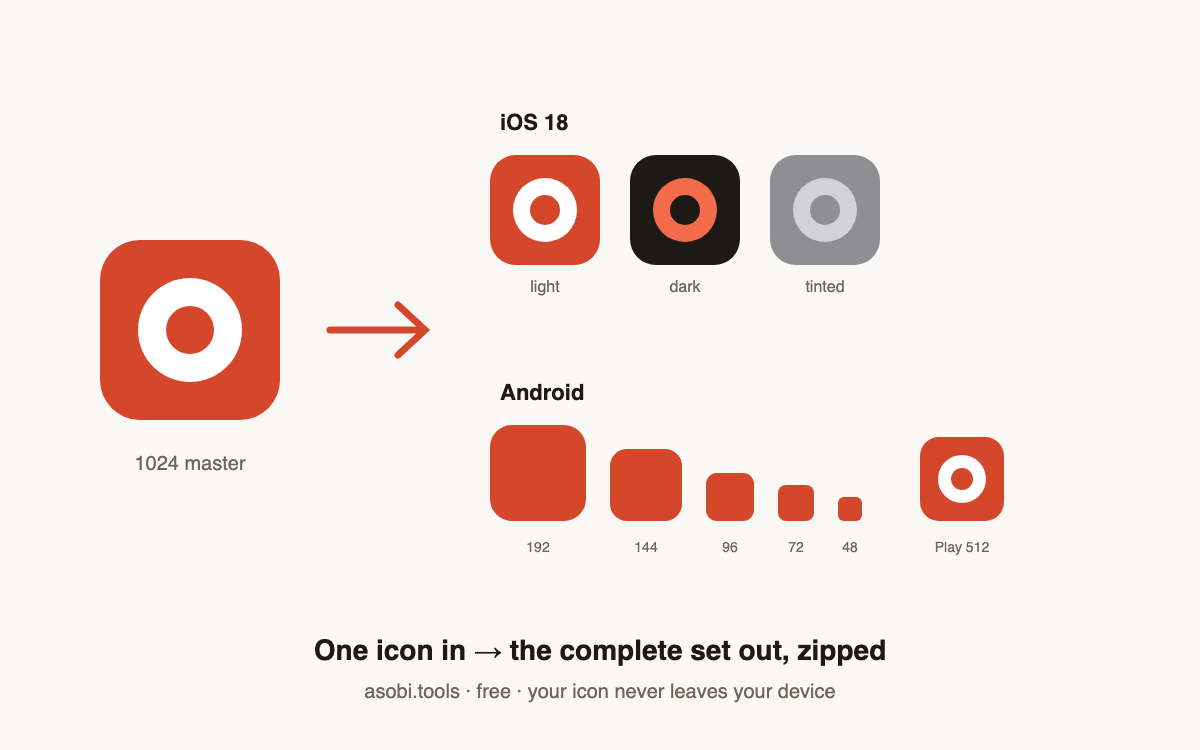
Drop one 1024 × 1024 icon and download the complete set — iOS master, auto-generated iOS 18 tinted variant, optional dark variant, and every Android launcher density — in one free zip.
How it works
- Drop your master icon at 1024 × 1024 — the size Xcode and App Store Connect want as the source of truth.
- Optionally add a dark-mode variant; the tinted iOS 18 variant is generated automatically as the grayscale Apple's tinting expects.
- Download one zip with the iOS set and every Android launcher density, named to drop straight into your project.
What app icon sizes do I need in 2026?
Far fewer than the old 20-file days — but the right ones. Modern Xcode wants a single 1024 master (plus optional dark and tinted variants since iOS 18), while Android still wants per-density launcher PNGs:
| Platform | Files | Notes |
|---|---|---|
| iOS | 1024 master + dark + tinted | Xcode single-size; variants are iOS 18's appearance modes |
| Android launcher | 48 / 72 / 96 / 144 / 192 px | mdpi → xxxhdpi mipmap folders |
| Google Play listing | 512 × 512 | Required for the store listing |
What are the iOS 18 dark and tinted icon variants?
Since iOS 18, users can switch all home-screen icons to dark or tinted appearance. The dark variant is your icon adapted to a dark background — usually your glyph on a darker field. The tinted variant is a grayscale image that iOS overlays with the user's chosen accent color; Apple's guidance is to supply your icon's shape in grayscale so the tint reads cleanly. Apps without variants get an automatic (often ugly) conversion — shipping real ones is an easy polish win.
How do I generate all app icon sizes from one image?
Start from a 1024 × 1024 master and scale down — never up. The full set takes under a minute:
- Export your icon at 1024 × 1024 from your design tool, with no transparency for iOS.
- Drop it above — add a dark variant too if you have one.
- Download the zip: iOS files plus Android mipmap densities and the Play Store 512, all named conventionally.
Why shouldn't my iOS icon have transparency or rounded corners?
Apple applies the rounded-corner mask automatically and rejects icons with alpha channels — a pre-rounded or transparent icon shows dark artifacts in the corners where the system mask and yours disagree. Always supply a full-bleed square; this generator flattens transparency onto a solid background for the iOS files while leaving Android's foreground assets untouched.
Is my icon uploaded when I use this generator?
No — resizing and variant generation happen entirely in your browser, and the zip is assembled on your device. For an unannounced app, that matters: your icon is often the most identifiable leak surface, and here it never touches a server. Verify in your browser's network tab while generating.
Frequently asked questions
Is this app icon generator free?
Yes — free, every size, no signup, no watermark. It runs in your browser, so your icon never leaves your device either. Free tools, no catch.
What exactly is in the zip?
iOS: AppIcon-1024.png, AppIcon-dark-1024.png (if you provided one), and AppIcon-tinted-1024.png (auto-generated grayscale). Android: launcher PNGs at 48, 72, 96, 144, and 192 px named by density folder, plus the 512 × 512 Play Store icon.
How is the tinted variant made?
It's your icon converted to the grayscale Apple's tinting system expects — iOS lays the user's accent color over it. If your icon's shape reads well in grayscale, the auto-version is shippable as-is; if not, use it as the starting point in your design tool.
Do I still need all the small iOS sizes like 60 and 120 px?
Not anymore — since Xcode 14, a single 1024 master covers the iOS app icon, and the system generates every size. Only very old build setups need the legacy size matrix, which is why this tool doesn't clutter your zip with it.
What about Android adaptive icons?
The zip gives you the classic launcher densities plus the Play Store 512, which every Android project needs. For adaptive icons (separate foreground/background layers with the 108 dp safe zone), keep your layered source in Android Studio's Asset Studio — that part is inherently project-specific.
What source size should I drop in?
1024 × 1024 exactly — it's the App Store's required marketing size and everything else scales down from it cleanly. Larger squares work too; anything smaller than 1024 means upscaling, which Apple will notice.
PNG or JPG?
PNG — it's lossless and what both stores expect. JPGs are accepted as input here and converted, but start from PNG if you can to avoid compression artifacts in flat colors.
Can I preview how the variants look?
Yes — after you drop the icon, the preview row shows light, dark (if provided), and the generated tinted variant side by side before you download anything.
Who built this?
Asobi Tools is built by Asobi Labs, a Brooklyn indie studio that ships its own iOS and Android apps — this generator produces the exact files its own projects use. Everything on asobi.tools is free, signup-less, and browser-only.